Author: By Raj
Part of our Google Sheets Automation Expert guides. Need this built for your team? Hire a Google Apps Script developer.
Estimated reading time: 13 minutes
Google Sheets Dashboard Automation with Apps Script
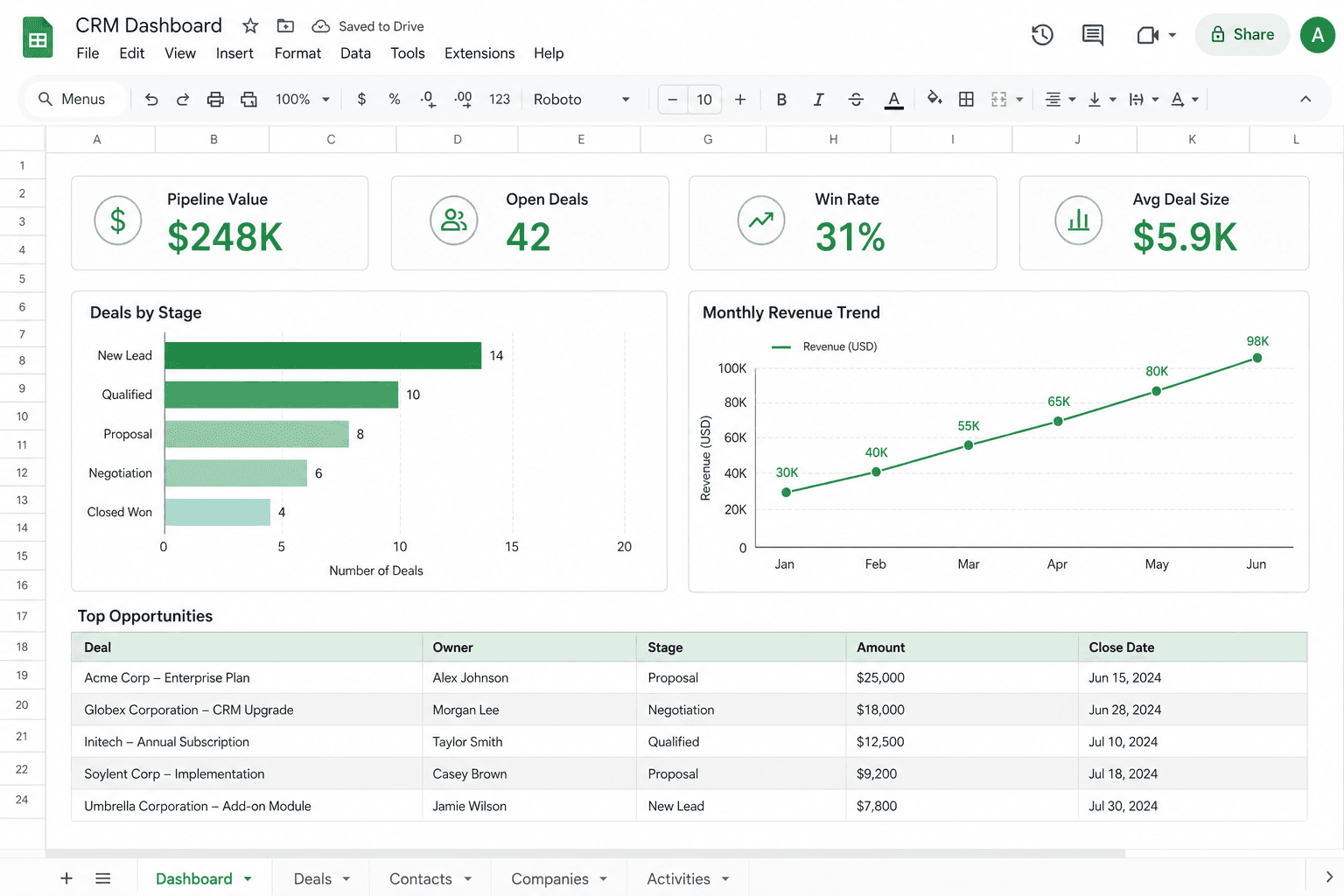
An auto-refresh dashboard in Google Sheets can replace manual reporting and keep KPIs current without copy-paste. Done right, it reduces formula recalculation lag and scales when you separate data, processing, and presentation and stay within execution and quota limits.
Why Most Google Sheets Dashboards Break at Scale
Formula Recalculation Storms
Many cells depending on large ranges cause recalc storms: a single edit triggers re-evaluation of QUERY() on 20k+ rows, ARRAYFORMULA across columns, or volatile functions like NOW(), and the sheet blocks until recalc finishes.
Large QUERY() Re-evaluation
QUERY() on large ranges is especially costly, each recalc re-scans the range. Open time and every subsequent edit slow down as the range grows.
Concurrent Trigger Overlaps
When two time-driven triggers fire close together and both write to the same Dashboard range, you get interleaved or overwritten values and no single source of truth for that run.
Growing Sheet Size Degradation
As the sheet grows, getValues()/setValues() and formula dependency graphs get larger; recalc and script runtime both degrade.
Hidden Circular Dependencies
Dashboard cell A referencing B, B referencing a Data cell that is updated by a formula that indirectly depends on A, causes repeated or stuck recalc. These chains are often hard to spot.
Cross-Sheet Dependency Cascades
A write on Sheet A forces recalc on Sheet B and C that reference it, multiplying cost. The more sheets in the chain, the worse the cascade.
Manual Edit Re-trigger Effects
Manual edits that touch any cell in the dependency chain trigger re-evaluation across the workbook. Fixing these issues requires moving aggregation into script, isolating layers, and controlling when writes happen, topics covered below.
When Google Sheets Dashboard Automation Makes Sense
Google Sheets dashboard automation fits best when Sheets is the source of truth and stakeholders need refreshed KPIs without manual steps. Ideal use cases include SME dashboards (sales pipeline, revenue, deal count), weekly reporting automation that pushes summary numbers into a fixed layout, sales KPI dashboards by stage or rep, inventory dashboards that reflect stock and reorder status, and operations monitoring (e.g. open tasks, cycle time).
Internal reporting workflows, where a team owns the data in a sheet and consumes it in the same workbook or via links, benefit from an auto-refresh dashboard Google Sheets setup. KPI automation in Sheets works well when refresh frequency is hourly or daily and when a moderate SLA (e.g. 1–3 seconds per script run, or “data current within the hour”) is acceptable. It is not for real-time trading views or sub-second SLAs; for those, use a dedicated BI or streaming solution.
Common mistakes
- Refreshing everything in one giant run (all sources, all sheets) and hitting execution time.
- Heavy formulas on the dashboard sheet that recalc on every script write (slow).
- No trigger; expecting manual run only (dashboard goes stale).
- Pulling external API data in the same run as heavy sheet aggregation (latency and time).
- Not separating “raw data” sheet from “dashboard” sheet (hard to maintain).
Architecture
Typical layout: one or more “Data” sheets (raw or imported) → script reads and aggregates (or pulls via UrlFetchApp) → writes summary/KPIs to a “Dashboard” sheet → charts reference that range. Time-driven trigger runs the refresh (e.g. hourly). Keep the script focused: one data source or one aggregation per run. For long-running pulls, see execution time limits. API integrations can feed external data into the Data sheet; web apps can expose a “Refresh now” button.
The 3-Layer Dashboard Architecture Model
A stable dashboard separates concerns into three layers.
Layer 1: Raw Data, append-only rows, imports from APIs or other sheets, or manual entry. No formulas that depend on Layer 2 or 3; this layer is the single source of input.
Layer 2: Processing, script-driven aggregation, cleaning, or pivoting. The script reads from Raw (and optionally external sources), computes, and writes to a “Processed” range or sheet. No presentation logic here; only derived data.
Layer 3: Presentation, the Dashboard sheet: fixed cells that receive final KPI values from the script (or from Processed via simple references), plus charts bound to those cells. Users view only Layer 3; they do not edit Raw or Processed in normal use.
Mixing layers causes instability. If the Dashboard sheet contains QUERY() over Raw, then every edit to Raw triggers recalc on the Dashboard and blurs the line between processing and presentation. If the script writes to Raw and also to Dashboard in the same run, and a formula on Dashboard references Raw, you get recalc on every script write. Keeping Raw → Processing (script) → Presentation (write-once cells) clear avoids cascading recalc and makes refresh time predictable.
Formula-Based Dashboards vs Script-Based Automation
A Sheets dashboard with Apps Script can either rely on formulas on the Dashboard sheet or have the script write final KPI values. Each approach has tradeoffs.
Formula-based dashboards use QUERY(), SUMIFS, or ARRAYFORMULA that reference the Data sheet; every time any cell in the dependency chain changes (including script writes), the sheet recalculates. QUERY() over large ranges has measurable performance impact: it runs on recalc and can slow down open/save and any edit. Volatile functions (e.g. NOW(), RAND()) force recalc on every change. Recalc-on-edit means that if your script writes to the Dashboard sheet, formulas elsewhere on that sheet, or referencing it, re-evaluate, which can cascade and add latency.
Script-based automation that reads Data once, aggregates in memory, and writes only the final KPI values to fixed Dashboard cells avoids repeated formula evaluation. One script run does one read, one compute, one write; charts reference static values so there is no formula recalc on the Dashboard after the run.
Use formulas when the data set is small, the logic is simple, and you want no triggers (e.g. a single user editing and seeing live updates). Shift to Apps Script when you have scheduled refresh, larger data, or need to pull from APIs or multiple sheets in a single pass. For KPI automation in Sheets at scale, writing final values from script is usually faster and more predictable than heavy QUERY/ARRAYFORMULA on the Dashboard.
Performance Expectations at Different Data Sizes
Engineering expectations below assume a typical single-sheet workbook with a modest formula set.
~5,000 Rows
QUERY() over ~5k rows often completes in 1–3 seconds on recalc. Script aggregation, one getValues(), loop in memory, one setValues() to the Dashboard, usually stays under 10 seconds with no recalc after the write.
~20,000 Rows
QUERY recalc at ~20k rows can reach 5–15 seconds; open/save latency becomes noticeable. Script aggregation over the same row count typically stays under 30 seconds, with no formula re-evaluation after the write.
~50,000 Rows
QUERY recalc at ~50k rows can exceed 30 seconds and block the UI. Script aggregation usually stays under ~2 minutes for 50k rows, and the Dashboard does not recalc after the write.
If the Dashboard has multiple QUERY or ARRAYFORMULA cells that depend on Data, each script write can trigger a full recalc; batching all writes into one setValues() or writing to a range with no formula dependencies avoids repeated recalc. Workbooks with large formula dependency graphs open more slowly; moving aggregation to script and keeping the Dashboard as static values improves open time as data grows.
Key Takeaway
Script-based aggregation gives predictable, bounded runtime and no post-write recalc. For scalable dashboards, write final KPI values from script and avoid heavy formulas on the Dashboard sheet.
Implementation
Refresh KPIs to dashboard sheet
Read from Data sheet(s), compute totals or counts, write to fixed cells on the Dashboard sheet. Charts bound to those cells update when the script writes.
function refreshDashboard() {
  const ss = SpreadsheetApp.getActiveSpreadsheet();
  const dataSheet = ss.getSheetByName("Data");
  const dashSheet = ss.getSheetByName("Dashboard");
  const lastRow = dataSheet.getLastRow();
  if (lastRow < 2) return;
  const numRows = lastRow - 1;
  const data = dataSheet.getRange(2, 1, 2 + numRows - 1, 4).getValues();
  var total = 0, count = 0;
  for (var i = 0; i < data.length; i++) {
    total += Number(data[i][3]) || 0;
    count++;
  }
  dashSheet.getRange("B2").setValue(total);
  dashSheet.getRange("B3").setValue(count);
}
Triggers
Time-driven trigger (e.g. every hour or daily) for scheduled refresh. For on-demand refresh, use a custom menu or web app that calls the same function.
Example: A sales dashboard showed pipeline value and deal count by stage. Script ran daily, read the pipeline sheet, aggregated by stage, wrote to a Dashboard sheet; charts and KPIs updated automatically. Manual refresh and copy to slides was removed; ~20 minutes/week saved.
Refreshing one dashboard (2–3 aggregates) typically completes in under 30 seconds; add more data sources with batching if needed.
Multi-Dashboard Architecture Patterns
When you run multiple dashboard refreshes, choose between one trigger per dashboard and a single orchestrator script. One trigger per dashboard gives clear separation and independent failure domains; stagger trigger times (e.g. Dashboard A at :00, B at :15, C at :30) to avoid concurrent runs and quota spikes.
An orchestrator script can run all dashboards in sequence with a shared cursor or row limit and a single time-driven trigger; it simplifies deployment but couples runtimes, if one step hangs, the rest delay. Use cursor-based batching when a single data source feeds multiple outputs: read a chunk, update each dashboard range, then advance the cursor and exit; a continuation trigger can run the next chunk.
Log each run’s start and end time to a “Log” sheet or Script Properties so you can detect slow or missed runs. Use an error-logging sheet: on exception, append timestamp, function name, and error message so you can debug without Stackdriver.
For long-lived workbooks, archive old raw data to a separate sheet or workbook periodically so the main Data sheet stays bounded; keep a clear separation between raw (append-only or import), processed (cleaned/aggregated), and dashboard (final KPI cells and chart ranges) sheets. This keeps the refresh script fast and the workbook maintainable.
function refreshDashboardWithLogging() {
  const ss = SpreadsheetApp.getActiveSpreadsheet();
  const start = new Date();
  try {
    const dataSheet = ss.getSheetByName("Data");
    const dashSheet = ss.getSheetByName("Dashboard");
    const logSheet = ss.getSheetByName("Log");
    const lastRow = Math.max(dataSheet.getLastRow(), 1);
    const numRows = lastRow - 1;
    if (numRows < 1) { dashSheet.getRange("B2").setValue(0); dashSheet.getRange("B3").setValue(0); return; }
    const data = dataSheet.getRange(2, 1, 2 + numRows - 1, 4).getValues();
    var total = 0, count = 0;
    for (var i = 0; i < data.length; i++) { total += Number(data[i][3]) || 0; count++; }
    dashSheet.getRange("B2").setValue(total);
    dashSheet.getRange("B3").setValue(count);
    if (logSheet) logSheet.appendRow([new Date(), "refreshDashboardWithLogging", "OK", (new Date() - start) / 1000]);
  } catch (e) {
    var errSheet = ss.getSheetByName("Log");
    if (errSheet) errSheet.appendRow([new Date(), "refreshDashboardWithLogging", "ERROR: " + e.message, (new Date() - start) / 1000]);
    throw e;
  }
}
If your dashboard refresh exceeds 60 seconds, fails intermittently, or becomes slower as data grows, you likely need architectural restructuring rather than more formulas, separate Raw from Processing and Presentation, move aggregation into script, and consider staggered triggers or LockService for concurrent-write safety.
Need a Sheets dashboard with Apps Script that auto-refreshes from your data or APIs?
Discuss your setupScalability and quotas
Execution time (6 min) and read/write limits apply. Keep each run small: one dashboard, one aggregation pass. For multiple dashboards, run separate triggers at different times or batch in one script with a clear row/cursor limit. Google sheets dashboard automation scales when you keep each run bounded and use the multi-dashboard patterns above. Link to auto-generated reports for downstream PDF or email distribution.
Enterprise scaling
For multiple teams or departments, use quota isolation: separate workbooks (and thus separate script projects) per department so one team’s heavy refresh does not consume the shared script quota. Each workbook has its own execution and trigger limits.
Stagger triggers across workbooks (e.g. Team A at :00, Team B at :15, Team C at :30 past the hour) to smooth request-per-minute load and avoid concurrent writes to shared resources if any data is synced between workbooks.
When multiple triggers can write to the same Dashboard range, use a lock so only one execution updates at a time.
- What goes wrong: Two triggers writing to the same cells can interleave partial updates or overwrite each other; read-modify-write in one run can be invalidated by another run’s write between read and write. There is no transactional guarantee.
- Why it is silent: No error is thrown; you get inconsistent or overwritten values and no single source of truth for that run.
- Why LockService solves it:
LockService.getScriptLock()ensures only one execution holds the lock and updates the Dashboard; others wait (up to a timeout) or time out, so writes are serialized.
Production pattern:
function refreshDashboardWithLock() {
  var lock = LockService.getScriptLock();
  try {
    lock.waitLock(30000);
    var ss = SpreadsheetApp.getActiveSpreadsheet();
    var dataSheet = ss.getSheetByName("Data");
    var dashSheet = ss.getSheetByName("Dashboard");
    var lastRow = dataSheet.getLastRow();
    if (lastRow < 2) return;
    var data = dataSheet.getRange(2, 1, lastRow, 4).getValues();
    var total = 0, count = 0;
    for (var i = 0; i < data.length; i++) { total += Number(data[i][3]) || 0; count++; }
    dashSheet.getRange("B2").setValue(total);
    dashSheet.getRange("B3").setValue(count);
  } finally {
    lock.releaseLock();
  }
}
Monitor via execution logs: in the Apps Script editor, Executions show run time and status. For critical dashboards, log each run to a “Log” sheet with timestamp, duration, and status so you can spot missed or slow runs.
Implement a retry strategy for failed runs, e.g. on exception, write the job to a “Retry” sheet and have a separate trigger (or the next run) pick up pending retries with a cap (e.g. max 3 attempts) to avoid infinite loops. Document data sources, refresh frequency, and ownership so handoffs and troubleshooting stay clear. Consider VBA to Apps Script migration if consolidating from Excel-based dashboards.
FAQ
How much does dashboard automation in Sheets cost?
Sheets and Apps Script are in Workspace. You pay for script development or maintenance. No per-refresh or per-user fee for the automation itself.
What are the limits for refreshing dashboard data?
6-minute execution per run. Heavy formulas or large data pulls can hit time or memory limits. Schedule refreshes (e.g. hourly) and keep each run focused on one dashboard or one data pull.
Is dashboard data secure?
Data stays in your Workspace. Control sharing at sheet or range level. Script runs as the owner; use Script Properties for API keys.
When to use Looker Studio or BI instead?
Use Looker Studio or BI when dashboards need to be highly interactive (drill-downs, filters, many viewers), when you need real-time BI (live connectors, streaming) rather than scheduled refresh, or when you combine multiple external data sources and need data blending, semantic modeling, and a multi-connector architecture with a unified semantic layer. Looker Studio also offers different access control (viewer-level) and is better for many data sources and complex joins. Use Google Sheets dashboard automation when the source of truth is Sheets, refresh is scheduled (e.g. hourly/daily), and you want KPIs and simple charts in one workbook with no extra tooling.
About the author
Raj is an Apps Script and Google Workspace automation specialist. He builds Google Sheets dashboard automation and report workflows for SMEs.
More about RajGet the full Apps Script script template
I'll email you a production-ready, commented version you can deploy in 10 minutes.
Continue reading
Google Sheets Automation
Google Sheets CRM Automation: Triggers, Pipelines, and Follow-Ups
Google Sheets Automation
Auto-Generate Reports from Google Sheets with Apps Script
Google Sheets Automation
Automate Inventory Management in Google Sheets with Apps Script
From another topic
How to Automate Google Sheets with Apps Script (Beginner Guide) →Need help with this? I handle this as part of my Google Sheets Automation Expert service.
CRM, dashboards, invoices, inventory, and report automation in Sheets.
See how it works →